The Creator Dashboard
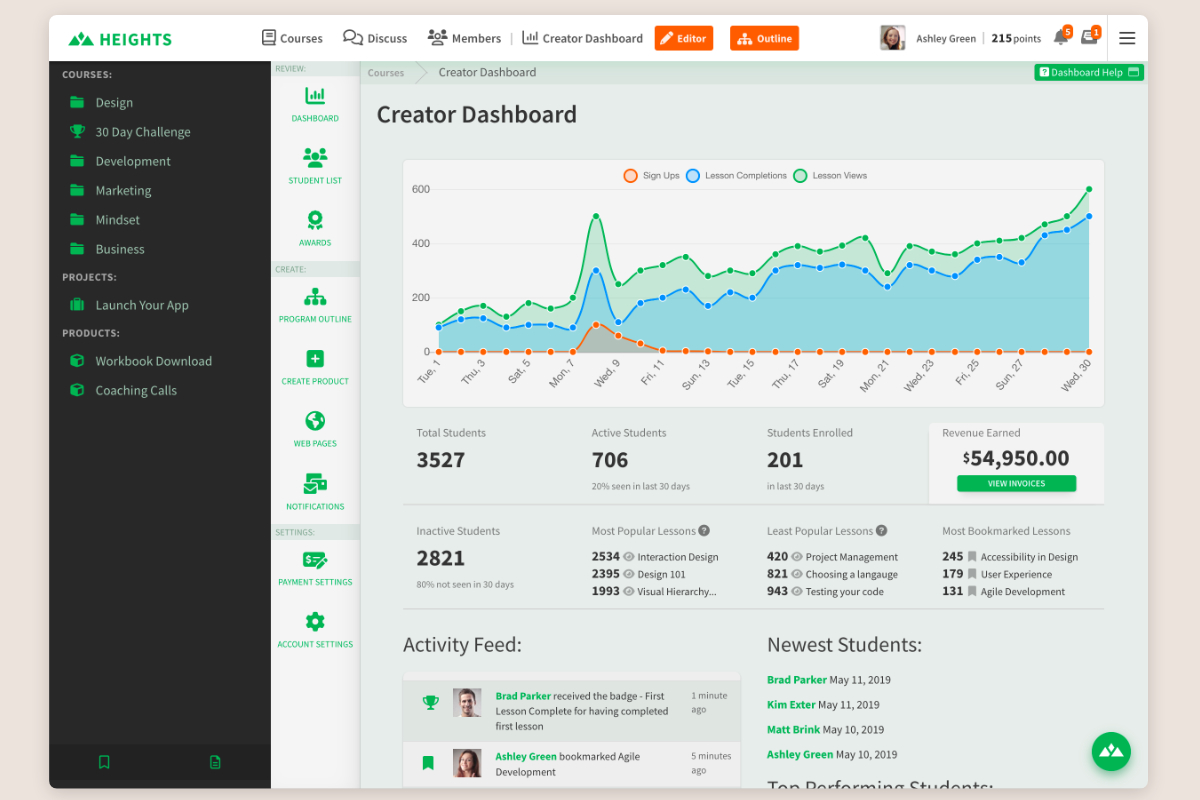
As a creator, whenever you log in to your platform, you will arrive at your Creator Dashboard. Here you can get an overview of the pulse of your program and students' progress as well as dig deeper into student analytics should you choose. This view also provides links to all areas of the program that you will need to adjust and is not available to any of your students.
Getting help from Heights AI and the support team
At the top of the Heights AI chat panel, choose Knowledge Base to open our help articles in a new tab. Your current page and AI chat stay available while you read.
Choose Email Support to close the AI panel and open the support widget. Support contact buttons on the dashboard and billing pages also toggle this widget open or closed. The knowledge base is separate from the support widget.
If the support widget cannot open, you can email support@heightsplatform.com directly.
Understanding your dashboard statistics
The statistics below the activity graph summarize your students, community, and revenue. These summaries use a rolling 30-day period where indicated; revenue earned shows your lifetime total.
- Total students includes student accounts that have not yet enrolled, but excludes creators and team members. Growth compares the current total with the total before the last 30 days.
- Community posts shows the number of posts made in the last 30 days. If your community is turned off, the dashboard says so rather than showing an activity count.
- Students enrolled counts students who created their account in the last 30 days and are now enrolled. This can include free enrollment; it is not a count of paid orders.
- Revenue earned shows lifetime revenue and revenue in the last 30 days, with a link to your orders. It is only visible to creators with permission to view orders and revenue.
The older Active Students, Most Popular Lessons, and Most Bookmarked Lessons widgets have been replaced by community and engagement information.
Community cohorts and student engagement
The Community cohorts bar groups your enrolled students by their recent activity:
- Cold: little recent activity. New students start in this group until their activity is assessed.
- Warm: recent community visits or some weekly engagement.
- Engaged: recent community posts or reactions, or a high weekly engagement score.
Hover over or focus the question-mark icon beside Community cohorts for these definitions. Counts appear beside each group, so you do not need to rely on the chart colors. Cohorts update periodically, not immediately after every action. If no students have enrolled yet, you will see an empty-state message instead of a chart.
Newest students lists your five newest enrolled students by account creation date. Top performing students lists up to five enrolled students ranked by lifetime engagement, with both weekly and lifetime scores. Engagement considers lesson views, lesson completions, community participation when enabled, and sign-ins—not just the percentage of a course completed. Scores update periodically, and clicking a student’s name opens their profile.
Watch an introduction on how to create with Heights:
Popular Links Accessible from the Creator Dashboard:
Other Popular Articles:
Selling Enrollment Membership Versus Selling Individual Courses
Granting and Revoking a Learner's Content Access